Blog Post #5
AWD
Author: Tom Frye
Updated: 08-23-2026
Third-Party Apps
Open-Shell

One of the biggest problems we have always had with every Windows version is its awkward GUI. And that was a problem going as far back as the early days of Windows 7 and Windows 8. From a purely design perspective, there is a lot wrong. Windows can often be quite unintutive and illogical. Most of us just want to use our computers without spending a lot of time searching and configuring. A Start Menu that unveils a long logical list of Programs or Apps in alphabetical order is far better than having to type into the Search Bar the name of the program or app that you want to run. And in the event that you aren't sure what program or app you need to run, browsing is much more difficult because no logical list of programs or apps exists. In Windows 11, these problems are more pervasive than ever, and they affect the File Manager that in Windows is known as Windows Explorer. And in many ways, it affects Settings and the Control Panel as well.
We have found that the best solution to easily fixing almost all of these awkward interface issues can be accomplished by installing and configuring the 100% free third-party app called Open-Shell, which allows users to make Windows 11 behave in a manner is much more intuitive and logical. Open-Shell is like a Desktop Environment (or DE) in Linux. The core operating system does not care what kind of desktop environment is running on top of it. It only cares about processing the user's job request, and it doesn't really care if that job request was printed on white paper or yellow paper. So try to think of the DE as the color of the paper in a user's job request.
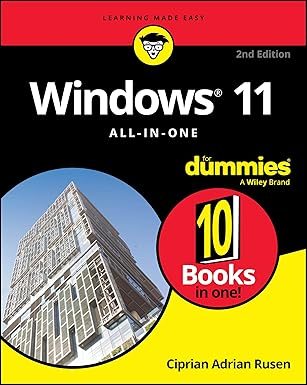
Necessity is indeed the mother of invention! In 2009, a Windows user named Ivo Beltchev became so completely disgusted with the pointless tiled icon interfaces offered by Microsoft that he developed his own Start Menu and File Explorer and called it Classic Shell. To many Windows users, it seemed like a blessing because, after Classic Shell was installed, a Windows OS behaved like Windows versions of the past, and there was no longer any need to buy and read 800-page Windows for Dummies books, just to productively use your Windows computer once again.
Eventually Ivo Beltchev stopped developing Classic Shell, and a new team of developers on GitHub took over development of Classic Shell under its new name of Open-Shell, by which it is still being developed and maintained today. In fact, we have been using and recommending Open-Shell for years. If you would like to download it and install it for free, just click on this link. And all of the information you will need to configure Open-Shell to your liking can be found on the Open-Shell website.
Open-Shell allows each user the freedom to configure the Desktop Environment in a manner that seems more logical and intuitive to them, which is something that Microsoft does not offer with Windows 11. Should you later decide that you prefer the Windows 11 Start Menu and File Manager, then you can always uninstall Open-Shell, and then the old Windows 11 GUI will return as if Open-Shell had never existed: warts and all.
Everything

Have you ever found yourself typing something into the Windows 11 Search Bar, and then waiting for nearly a millennium for results, while Windows performs deep indexing of all of the files in its entire operating system? When that happens, it's not pretty! And once the OS gets into its deep search process, you may find that it's an impossible task to cancel your request and return to normal operations.
But the answer to those prayers you were mumbling back when this happened is called Everything, and it is another freeware product invented by a team of completely fed up software developers, who could no longer wait for Windows. One nice feature in Everything is that it has a very small footprint, so its processes run in the background using fewer resources. It is also launched with Windows as soon as it boots up. But the best part is that it already knows where all of the files in your file system are located, so the results of your searches are almost instantaneous. In other words, you get a list of results as soon as you press the Enter key. You'll be able to find Everything in milliseconds (pun intended). And if you try it and find that you don't absolutely love it, we'll give you your money back, no questions asked.
Cloud Storage

Having a dependable backup solution for our important data is necessary. And it is important to have a local copy of our backed-up data, and well as a remote copy of our backed-up data. But we are individual users living busy lives. We are not the owners of huge corporate server farms that employ IT teams who perform daily backups on all of our mission-critical data. In fact, implementing a good backup strategy is generally an afterthought for most of us. And most likely, many of us have no regular backup plan at all. We know we need it, but we simply don't take the time required to do it.
Luckily for us, Microsoft does create restore points on our systems locally, which can help us restore our systems in the event of a catastropic failure: not always, but it's better than nothing.
But the importance of having cloud storage cannot be understated. Having all of your important files backed up to the cloud means that, in the event of a tragedy like a house fire or some other destructive event (or even an oops moment when you delete files and folders accidentally), your important files are safely stored in the cloud, so you can always recover that data once you recover from the tragic (or minor) event. And we completely understand that this isn't something we like to think about. But ask the people who lost everything in the most recent Maui and California fires, and they will tell you that they now have their family photos, their tax returns, and their other legal documents and financial records, thanks to the cloud storage they paid for monthly. Anyway, that's enough said on the importance of cloud data backups and file storage.
Let's Compare Products
If you are happy with OneDrive and don't mind paying for it, then you should keep using it and keep paying for it. But let's compare some of the other cloud storage options that are available to you first.
Sorted by Price & Capacity
Sorted by Service Provider
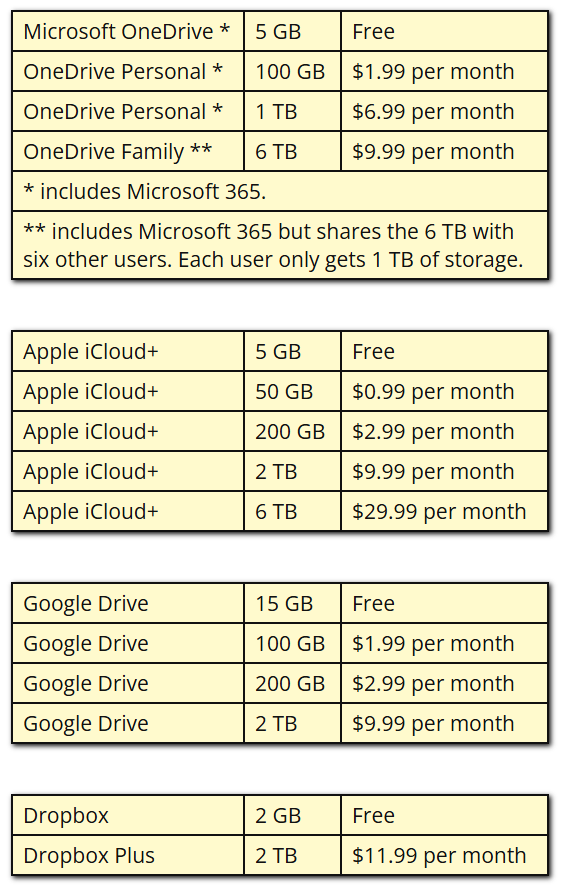
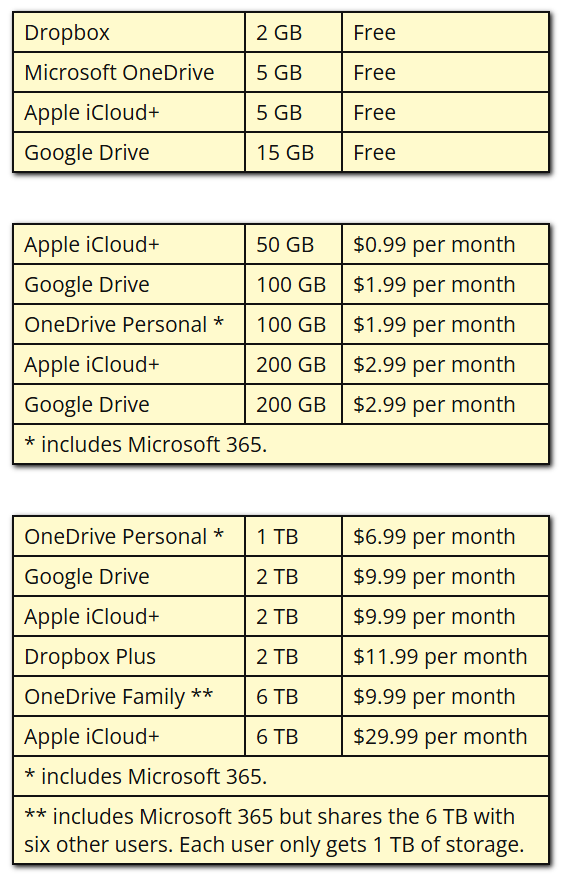
There are really only four reliable resources for cloud storage that are also reasonably priced, and they are provided by Microsoft, Apple, Google, and Dropbox. All four offer a small quantity of free cloud storage that most users will quickly outgrow. When that happens, the need for greater storage capacity increases, along with its monthly costs.
Microsoft hopes to entice you by offering you Microsoft 365 as an added bonus. As a Windows user, that seems like a generous offer and a logical choice, assuming that Microsoft 365 is your chosen Office Suite. The only real downside is that the OneDrive service runs slowly in the background, and that has a way of slowing your entire system down considerably. So let's hold that thought for a moment while we explore our other options.
If you have Apple products like an iPhone, then you may already have an iCloud+ plan that you pay for monthly. And although the iCloud+ service is available for Windows users, it also runs more slowly, because Apple caters to their customers, and they would rather not support Windows users. Also, iCloud+, like everything else that Apple makes and sells, is generally more expensive than other alternatives in the long run.
Similarly, Google caters to its Android and Chromebook users, but it also offers Google Drive, which can often seem like the cheapest alternative of all. And regardless of whether you sign up for Google Drive or not, their Google Office Suite products (also known as Google Workspace) like Google Docs, Google Sheets, Google Slides, and Google Forms are always free, as are the first 15 GB of Google Drive. But like the other products we've already discussed, the Google Drive service runs slowly in the background. Also, the Google Office Suite apps are not 100% compatible with the Microsoft 365 Office Suite products, nor are they widely embraced by the business community. So while being the least expensive cloud storage solution, Google Drive might not be the best choice in terms of speed.
You could use all four free cloud storage solutions at the same time and get 27 GB of cloud storage for free! But we have no idea how you would manage them in terms of what data is stored where, and your system could slow down considerably while your files and folders are being synced through the background services running behind each one of these cloud storage providers. Sometimes the best and cheapest solution is one service to rule them all, even if it costs a couple extra bucks a month.
Dropbox
We believe that the best cloud-based storage solution is Dropbox, which we highly recommend it over all the other cloud services we mentioned here. Dropbox is a company that provides cloud storage as their only business, while their competitors spread their focus over a vast array of other products and services. And it stands to reason that, when you can concentrate all of your efforts on one product, that product should be better than the products of your competitors. And that certainly is the case with Dropbox.
We've been using Dropbox Plus for over 15 years. A Dropbox Plus account will only cost you $12 per month and will provide you with 2 TB of storage space. But it syncs up fast, and does not slow your computer down. And even after 15 years of constant use, we are still using less than 300 GB of the 2 TB of storage space available to us. To us, it's a no-brainer.
Since Dropbox offers you 2 GB of storage for free, you might want to try them out and then compare them to the other free cloud services. Why not test drive all four cloud storage solutions? In the end, you'll know which one works best for you.
LibreOffice
We briefly mentioned Office Suite products while talking about cloud storage solutions, so we thought this might be the perfect segue to mention LibreOffice. We used and paid for Microsoft's Office Suite products for decades, using mostly Microsoft Word and Microsoft Excel, so the very thought of trying a FOSS Office Suite seemed scary to us. We were certain that we would find lots of bugs and incompatibility problems with this free and open-source software alternative. Nevertheless, we finally decided to give LibreOffice a try, while still using Microsoft 365 through a paid subscription.
Much to our utter amazement, we soon discovered that all of our Microsoft Word .docx and .doc files were 100% compatible with LibreOffice Writer, and vice versa. Any file created with LibreOffice Writer could be saved with the .docx or .doc file extension, and it could be sent as an attachment to an email to a user of Microsoft 365, and they would not be able to tell the difference between that document and one that was created using Word.
We also found that all of our spreadsheets that were created using Microsoft Excel and having .xlsx and .xls file extensions were 100% compatible with LibreOffice Calc, right down to the previously-created formulas and macros. The same could be said for all spreadsheets created with LibreOffice Calc and saved with the same .xlsx or .xls file extensions. Each one of these could then be sent as an attachment to an email to the user of Excel, and they would not be able to tell the difference.
But there's more! OpenDocument Format (or ODF) is also very compatible with those proprietary Microsoft file formats. Most Europeans have already started to embrace ODF files in business and in government. Eventually it became obvious that Microsoft would have to support ODF file formats, or face legal challenges. So today, you could send an ODF file to a Microsoft 365 user and they would be able to open it, read it and/or use it. But if you know your file will be sent to a Microsoft 365 user, it is probably best to save it with the traditional proprietary file extension. Nevertheless, we save our own personal files with ODF extensions.
So we've long since converted to LibreOffice and have never looked back. The only possible issue we have seen and need to report is that LibreOffice does not support VBA (Visual Basic for Applications). We did find one VBScript written in VBA over 20 years ago that is not compatible with LibreOffice. And we've never found an easy solution for converting that one file. LibreOffice has their own scripting language called LibreOffice Basic, but learning to use it was never a high priority for us. So, if we've only lost one file out of hundreds during the transition from a paid subscription of Microsoft 365 to a free version of LibreOffice, then that transition was certainly worth the price of admission.
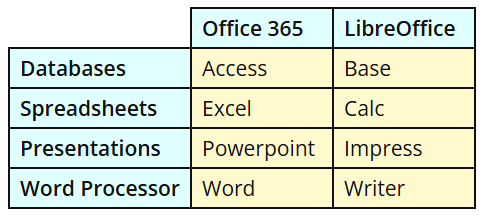
This table on the left defines the LibreOffice apps that are the direct replacements for each Microsoft 365 app. As explained above, the conversion from Word to Writer and from Excel to Calc are both easy transitions to make. We admittedly have less experience using Presentations and Databases, but users who have used both report favorable and successful results using Impress and Base. Personally, we never found that Outlook or OneNote were important apps, so we did not include them in this table.
Most of us were forced to use Outlook in corporate environments, but we never really liked it. And emails, calendars, chats, and online meetings are now better handled through other applications these days. We also did not include LibreOffice's apps called Math and Draw in this table. Microsoft does has a direct replacement for Math called Equation Editor. And the free vector graphics drawing capabilities in LibreOffice's Draw app were once performed by Microsoft's Visio and partially by Publisher. But the ability to add images, graphs, and charts are usually available within other Microsoft apps like Word, Excel, and Powerpoint. Meanwhile, you may find that you will need to import these items from Draw into your other LibreOffice apps: not always but sometimes. But with LibreOffice, all of these apps are FOSS (Free and Open Source Software). On the other hand, if you are absolutely convinced that your requirements dictate the use of the Microsoft 365 Office Suite, then you should click on the button below to view their three-tiered pricing scheme. Their apps do have the prettiest icons.
PDFgear & Sumatra PDF
Adobe is much like Apple in that every product they offer is expensive. About the only free Adobe product is Adobe Acrobat Reader. And now that Adobe Acrobat Reader has built-in AI, it has become almost unusable. The last time we tried to use it, we found that there was some confusion between the search function and the AI function. And the only Adobe product that allows users to actually edit PDF files is Adobe Acrobat with 3 different pricing plans that range from $15 to $25 per month.
We have found that PDFgear offers free online and offline PDF Editing Tools, and a whole range of file coversion tools as well. So there is absolutely no reason to pay Adobe to edit your PDF files. And besides, both Microsoft Word and LibreOffice Writer allow users to export PDF files directly from each of those word processors. And if you ever need to read a PDF file online, Adobe Acrobat and several other PDF file readers are available as addon extensions to your web browser.
We have also found that Sumatra PDF offers a free PDF reader that is superior to Acrobat Reader because it supports more file formats than just PDFs. It also allows you to read the eBook formats of epub and mobi, and also XPS and CHM files. And you can even use it to view images. Another nice feature of Sumatra PDF is its Gallery of Frequently Read documents that it maintains on its own.
We have installed both PDFgear and Sumatra PDF programs. Both are superior products. Both are free.
Patch My PC Home Updater
Patch My PC produces two versions of their amazing software product. One of them was designed for corporate users which has a price tag attached to it. The other one called Patch My PC Home Updater was designed for home users and they offer that product to home users for free.
Trying to keep all of your third-party apps up-to-date used to be a huge pain, because some of these apps release new versions almost daily. And the Opera web browser comes immediately to mind. But thanks to Patch My PC Home Updater, it can happen quickly and easily as often or as infrequently as you like. You can even schedule it to scan for updates automatically each time you boot up your computer, or at regular intervals of your choosing. We usually do manual scans about once per day.
After you install Patch My PC Home Updater, you will perform your first scan. During that process, it will automatically identify all of the apps on your PC that it can update, and it will show you a list of all those apps that are up-to-date, and list all those that are out-of-date as well. If there are any out-of-date apps, it will then perform updates on them silently with the click of a button. Currently, Patch My PC Home Updater (v5.4.4.0) has 556 packages in its App Library. And we personally have 34 of those apps installed which Patch My PC Home Updater is currently scanning and updating as needed. It even keeps itself updated as an added bonus.
Oh, if only Windows Updates was as easy to use as Patch My PC Home Updater, right? Actually Windows Updates does scan your Windows OS at regular intervals, unless you have specifically turned off all automatic updates or paused them for 1-5 weeks at a time. Much like Patch My PC Home Updater, we run Windows Updates manually about once per day. And we strongly recommend that you do the same. Your OS needs to be up-to-date, and all of your apps also need to be up-to-date. Software patches exist for good reasons. They fix software bugs and security vulnerabilities that could otherwise crash or damage your computer.
Do you know about Patch Tuesday? Patch Tuesday occurs on the second Tuesday of each month at 10:00 a.m. Pacific Time. That is when Microsoft releases the majority of their monthly patches. Once a security vulnerability is found, Microsoft releases a software patch to fix it. Once released, hackers will learn that such a vulnerability exists, and then they will start trying to find a way to exploit that security vulnerability. The day after Patch Tuesday is sometimes referred to as Exploit Wednesday, because skilled hackers can sometimes find and release a hack in less than 24 hours.
The main point we are making here is that people who don't perform Windows Updates or software app scans with a tool like Patch My PC Home Updater in a timely manner become their own security vulnerabilities, and often become the victims of attacks from unscrupulous hackers. So please be smart! It only takes a few minutes of your time to perform these security checks. And usually, a word to the wise is sufficient.
Malwarebytes & Webroot SecureAnywhere
Now that we've wandered off into the world of Windows Security, let's discuss that topic at length. We admittedly spend a lot of our time and effort bashing Microsoft, but this is one area where they have done their homework. But then again, they pretty much had to since Windows is the most popular desktop OS in the world, and it is therefore the primary target for hackers worldwide.
In the past, tons of money has been made selling each Windows user software to guard against computer viruses, malware, adware, and potentially unwanted software (PUPs). And certainly those threats still exist today. But Microsoft has fixed most of their own security vulnerabilities with the introduction of Windows Defender Firewall. This firewall does an excellent job of preventing computer viruses and other baddies from invading your operating system. If they can't get in, then they can't do any damage. So although we rarely do this, we will sing the praises for Microsoft and Windows Defender Firewall. For most of us, this should provide enough protection to prevent damages to our systems, if sensible web browsing habits are practiced, and safe browsing rules are observed.
Ah, but what happens during the unfortunate event that a disaster does strike? Luckily for all of us, Malwarebytes exists! And it is a good idea to download a free copy of this product, even if you do not install it and start a free trial. Why? Because in the event that your Windows system begins acting funny and you suspect that you have been attacked by a virus or malware hack, you can perform a full system scan with Malwarebytes, and it will remove those bad guys quickly and efficiently, presumably even if your downloaded version is somewhat outdated.
Of course, that's not good enough for those of us who are paranoid by nature. We, the Paranoid People, in order to preserve a more perfect system, will install a secondary virus-scanning software product like Malwarebytes or Webroot SecureAnywhere, and pay the yearly price for the added protection. One main advantage to paying for a yearly subscription is that you can then schedule daily scans which will run in the background, perhaps at 3:00 a.m. when you aren't using your computer. And another feature we like is that it will intercept and block these baddies before they have a chance to infect your computer. But once again, using a paid-for product is optional, and only necessary for paranoid people who have probably had some horrible computer virus infection in the past, and who hope to never have to go through anything like that ever again. And trust us when we tell you that we've been there and we feel your pain.
But before you decide to download and install either of these pay products, which we highly recommend over all the others, we have a couple of tips to help keep costs low. The best deals on these products are offered during Black Friday sales. You can cut the cost by as much as 75% if you purchase them during this timeframe. Also, they both employ automatic renewals, which need to be avoided at all costs (pun intended). Automatic renewal happens with whatever the full price is at that time. So here is the deal. You will get an email when automatic renewal is drawing near, usually 4 to 6 weeks before your subscription expires. And you will be given the option to opt out of automatic renewal by following the links in the email. Then, when your product expires, around the time of next Black Friday, you can check to see if special pricing is available to you. And if it is not, simply check out the Black Friday sale prices offered by other competitor mentioned. Bottom line: you should never end up paying more than $25 to $35 USD for a seconday virus protection product. After all, your Windows Defender Firewall basically already has you primarily covered.
Notepad++
Everybody needs to have a plain text editor, and Microsoft has included Notepad with their Windows OS for that purpose. And for the most part, Notepad gets the job done. A plain text editor does not need fancy fonts, grammar and spelling checkers, or formatting structures like a word processor does. Nor does it need to check for syntax and reference errors like a code editor does. Simply stated, the job of a plain text editor is to create files that are composed of plain unformatted text.
As an web developer, you have now installed Visual Studio Code and use it on a daily basis. And VS Code is considered to be the de facto standard for people who write web development code. But we have found times when we need to have another text editor that does more than simply work with plain text. And the best text editor available for that purpose is Notepad++. If you copy-and-paste some code from almost any other programming language into the editing window of Notepad++, chances are good that Notepad++ will recognize it and begin formatting it using the rules for that programming language. That is certainly the case for code written in HTML, CSS, JavaScript, Python, PHP, and XML. And according to this article on Wikipedia, Notepad++ can recognize and display at least 78 different programming languages.
And why is that important? Because only fifteen years ago, Notepad++ was the de facto standard for people who write web development code. And to this day, there are things that Notepad++ can do for you that VS Code cannot. For instance, VS Code cannot display SVG images in the code editor window unless you install an extension like SVG Previewer. It can for most other raster graphics images, but not for SVG vector graphics images. SVG images are actually written in XML code, but VS Code is unable to display that code to you, which is only one case where you need Notepad++ as a secondary code editor. And there are other such cases as well.
Nevertheless, the Windows 11 operating system does rely on Notepad, so do not uninstall it, or your Windows 11 operating system will be broken. Instead, simply use Notepad++ as your secondary code editor to VS Code and you will soon find times when you need to use Notepad++. The Notepad++ Logo two paragraphs above this one is an SVG file. If you download it and open it with Notepad++, the XML code that was used to write that image will be revealed for you to see.
VideoLAN VLC Media Player & K-Lite Codec Pack
Another great app that is included with Windows 11 is Media Player. And yes, it is true that there are many other choices available to you for playing music files offline. However, we have found that Media Player is the best and easiest tool to use for ripping song files from CDs, if that is something that you ever need to do.
But when the need arises to watch videos offline, especially films on DVDs, there are much better choices available to you. Probably the best one of these is VLC Media Player from VideoLAN. We strongly recommend that you download this FOSS application and give it a try. You'll be glad you did.
But there is another similar FOSS video player app to try as well, and it is called K-Lite Codec Pack. The K-Lite Codec Pack includes codecs (coders/decoders) for almost all video formats that you will find out there. For any video file that you cannot play on your VLC Media Player, there is a good chance that it will play on K-Lite's Media Player Classic. To get everything that is offered, you will need to download and install their Mega package. We don't understand why they offer so many different packages. Most people download and install the Mega package, and then they let Patch My PC Home Updater keep it updated from there.
Belarc Advisor
Belarc offers Belarc Advisor in much the same was as Patch My PC. They have one product designed for corporate users, and another one that if offered free to personal users. And Belarc Advisor is a truly great security product that scans your entire computer and checks for missing software patches, and it informs you when it finds them. It also gives you an entire list of all of the software patches that are installed on your computer, and that list is actually quite comprehensive. One feature we like is that it can find the product key for your Windows OS and other software products, and that can prove useful if you ever have to reinstall something, but no longer know your original product key. We have found that Belarc Advisor might report false positives prematurely, especially for new Microsoft Updates for .NET Drivers, but that is generally fixed within a few days after Belarc uploads an updated list of security definitions. We believe that living with this quirk is worth it, especially since so much other great information is reported to us as well.
ImageGlass
WARNING! All versions of ImageGlass beyond 9.5.0.515 have serious problems! We have no more patience in dealing with this software developer. The last usable version is 9.5.0.515. To download the last stable version, click here, and choose the Windows x64 MSI package direct link. If you attempt to download and install any version of 9.6 or 10, you will undoubtedly regret it. These newer versions change the file associations in your Windows registry, and create chaos with graphics file icons. However, 9.5.0.515 works perfectly fine! So stick with that version, and you will remain productive and happy.
And just FYI, if you are using Patch My PC Home Updater, you can Disable Scanning for that app so that it never shows you future updates for ImageGlass. Just click the three dots ⋮ on the right-side of that app on the list, and a menu will appear that lets you select Disable Scanning.
ImageGlass is an excellent program for viewing images. It has the ability to view almost any image file type. However, we want to warn you that an Image Viewer and a Graphics Editor are not the same thing. An Image Viewer will allow you to view an image, but in order to actually make changes to the image requires a Graphics Editor. We like to set ImageGlass to be the default Image Viewer in Windows, simply because any Graphics Editor takes much longer to open each image file. Sometimes you just want to see an image before you add it to your web page. And that is really the only purpose of an Image Viewer like ImageGlass.
Photopea
Read our Blog #6 on Graphics Editors. We strongly recommend using Photopea as your free Graphics Editor, unless you choose to buy something better. We truly believe that there really is no better free Graphics Editor, especially if you install it as a Progressive Web App (PWA). For more and better information on Photopea, please read the very next blog post.
Electric Sheep

In previous versions of the Windows OS, you could install a plethora of different screensavers. Of course these days, screen savers are just fun toys to play with, because modern monitors are flat panel displays that cannot be damaged by having the same image displayed on them for days, weeks, or even months at a time. And also modern monitors now have power-saving modes. However that was not the case with the old cathode ray tube (CRT) monitors. If you treated those old monitors like that, they would eventually burn those same image into phosphor on the inside of the glass tube. To prevent this from happening, handy software products called screensavers were invented.
Again, the screensaver is no longer an essential piece of software. Instead, it is a fun little toy that displays beautiful pattens on your monitor screen before it finally times out and goes blank in some type of power-saving mode. But if we could only have one screensaver installed on our Windows computers, it would be this one called Electric Sheep. It produces beautiful animated fractal patterns that are definitely interesting to look at. And this is also offered for free, and it has versions that can be installed on any computer, not just Windows. So download and install it and enjoy the visual entertainment for free.
Other Third-Party Apps
The list of possible third-party apps that you could install on your Windows 11 PC is nearly endless. These are just a few of our favorites. We receive no money for endorsing these products. We do not advertise products for companies or other software developers. If you find that we recommended a product here, it is here only because we found that is was a useful tool for us, and we therefore believe that could be be a useful tool for you as well. And if that product has a cost associated with it, then we would only recommend it if we believed that the product was useful enough to justify that cost. As we review the long list of third-party apps above, we found that the only product we actually thought you should pay for is Dropbox Plus for $12 per month. We even left the decision to buy a secondary virus protection completely up to you. Otherwise, we only recommended products that are free.
However, we did not talk in depth about Graphics Editors here, even though we believe that every web developer needs to have good tools to work with graphics images. And most likely the best graphics editors will cost you if you do it right. But the complicated subject of Graphics Editors will be covered in the very next blog post.